Neody
The Neody menu: a complete guide to the K key
Moi, Monde and Commerce: the Desk, Kingdom and Aldwin, mail, deliveries, colony, contracts, Market and Ctrl+K search. A guide to Neody's current menus.

Contents
Press K to open the Neody menu. Here you will find your character, mail, Aldwin, your colony and trading tools. This guide follows the three groups in the left column: Moi (Me), Monde (World) and Commerce (Trade).
- Open
- K, which you can rebind in the game controls
- Quick search
- Ctrl + K
- Close
- Échap
- Start here
- Bureau (Desk), then Monde › Royaume (World › Kingdom)
1. Three groups to keep everything within reach
Click a collapsed group to reveal its entries. Navigation stays on the left; the selected page fills the rest of the menu. Small counters highlight anything that needs your attention.
| Group | What you will find | What it is for |
|---|---|---|
| Moi (Me) | Bureau (Desk), Personnage (Character), Origines (Origins), Courrier (Mail), Livraisons (Deliveries), chat appearance | Your identity, messages and items to collect. |
| Monde (World) | Royaume (Kingdom), Ma colonie (My colony), Territoires (Territories), Guerre & paix (War & Peace), Registre (Register) | Life in the Kingdom, your territory and relations between colonies. |
| Commerce (Trade) | Portefeuille (Wallet), Marché (Market), Contrats (Contracts), Entreprise (Company), Prêts (Loans) | Earn, trade, pay and keep track of your commitments. |
Staff tools only appear for authorised users. If an entry is missing, first check that its group is expanded and that you are playing on Neody.
2. Bureau: see what needs your attention
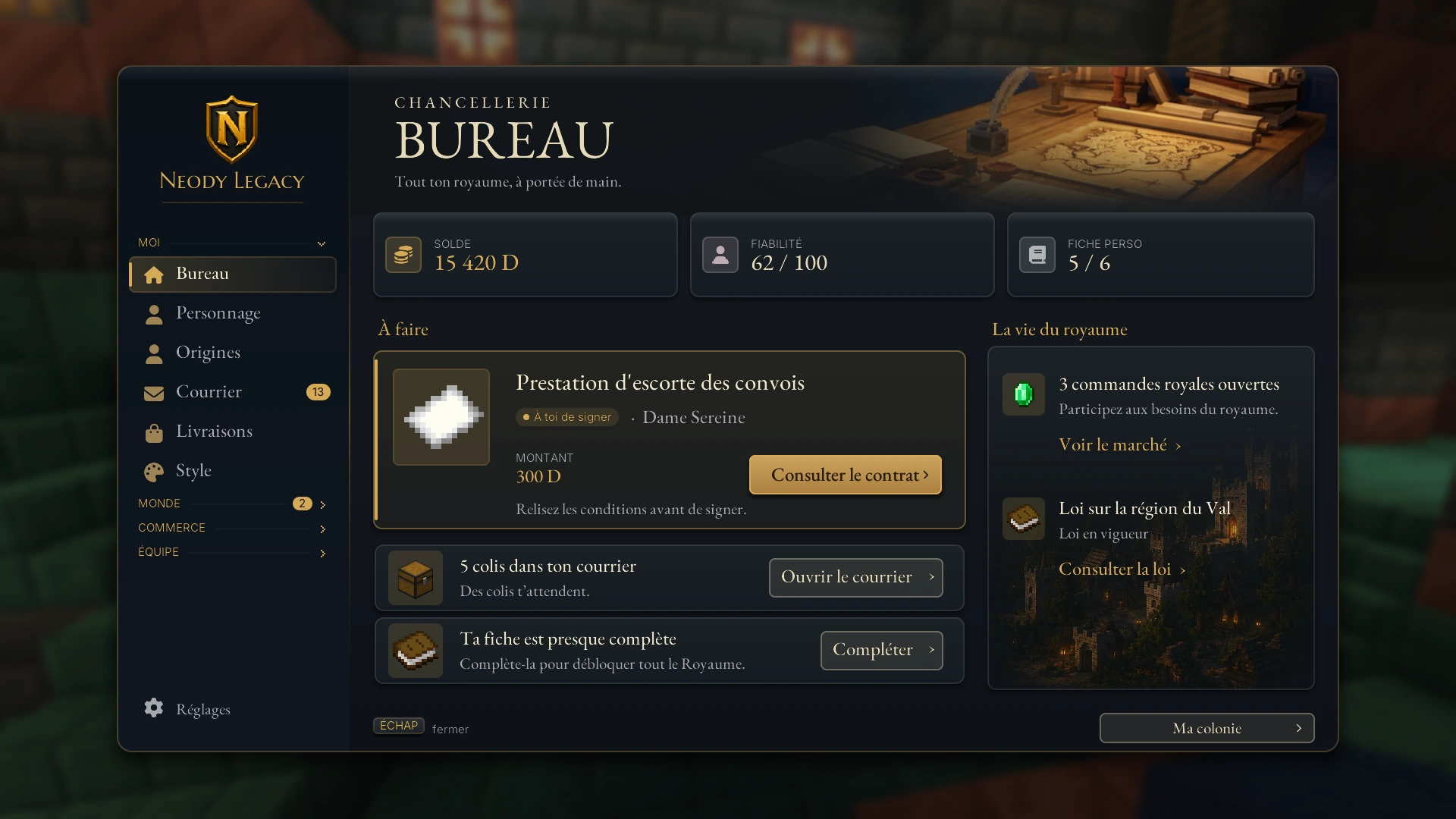
The Bureau (Desk) brings your reminders together: a profile to complete, messages, contracts to sign, rewards or items to claim. Click a card to open the relevant record. Your balance and reputation provide a quick overview; the Portefeuille (Wallet) shows your transactions in detail.
3. Royaume: Aldwin and King's Contracts
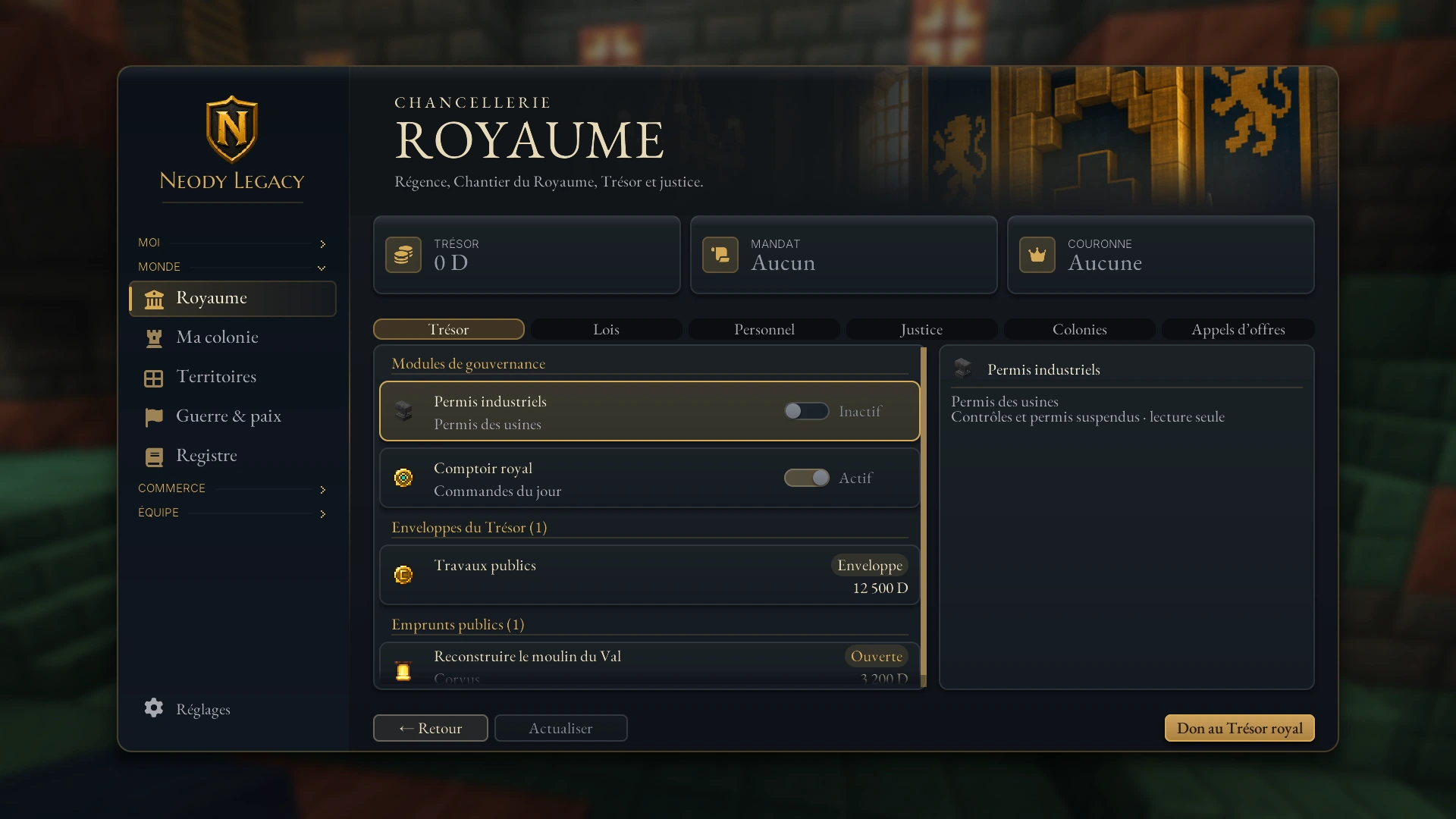
In Monde › Royaume, start with Aldwin. Here you can follow Kingdom activities, suggested objectives and your progress. Mes contrats (My contracts) lists your King's Contracts; the Ma colonie (My colony) page tracks your city's participation. A season page may also appear while a season is open.
The welcome journey introduces your three personal King's Contracts. You can view them in Royaume. They are separate from the Market's Royal Orders, where you deliver goods in exchange for deniers, and from commercial contracts signed between players.
4. Personnage and Origines
Moi › Personnage contains your identity and story. Fill in the fields that will help others roleplay with you. Origines (Origins), also accessible with O if you have kept that key binding, shows your powers and progress. Read about origins and then classes, lineages and evolution before choosing a new path.
Your first arrival takes you through character creation and then the herald's tour. The getting started guide takes you through this journey as far as your first colony.
5. Courrier and Livraisons: two destinations
Moi › Courrier brings together your letters, alerts and rewards. Open a message, read its details, then claim any reward. This is where you read economic alerts.
Moi › Livraisons contains Market purchases and items waiting to enter your inventory. Select a row, then use Récupérer (Collect). Keep some space in your bag. Items returned after a cancellation or an incomplete order may also arrive here.
6. Registre: write records and find characters
Monde › Registre keeps declarations and roleplay documents. Its directory lets you find characters and their profiles. Commercial contracts involving payment, a company or a deadline are in Commerce › Contrats. For features that require a linked identity, follow the Discord linking guide.
7. Commerce: five direct entries
| Entry | Your first step | Full guide |
|---|---|---|
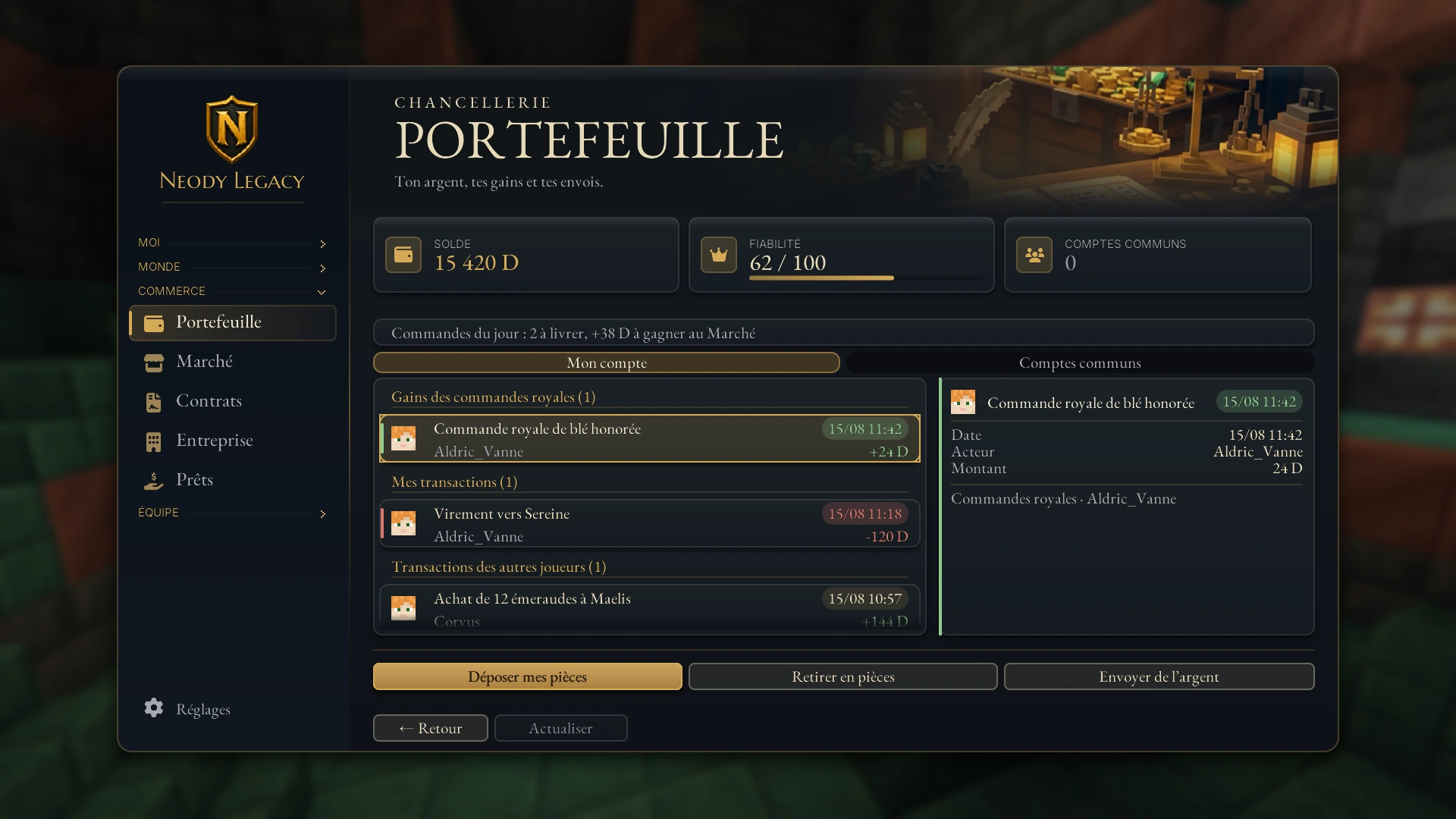
| Portefeuille (Wallet) | Read your balance, deposit coins or prepare a transfer. | Deniers and accounts |
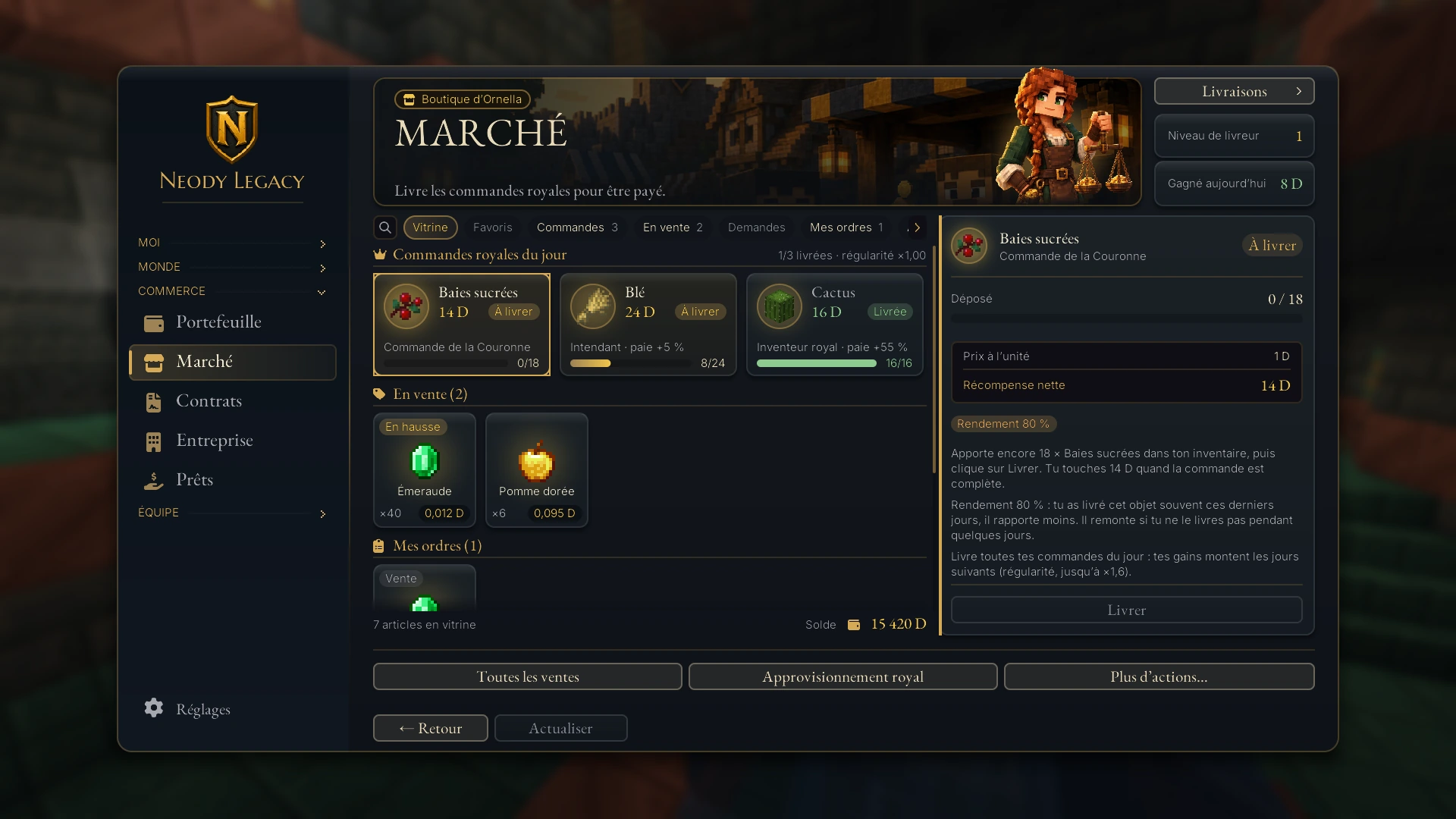
| Marché (Market) | Read your Royal Orders, buy an item or list one for sale. | Market and Royal Supply |
| Contrats (Contracts) | Propose, sign and track a commercial commitment. | Contracts, companies and loans |
| Entreprise (Company) | Create or manage your company and its account. | Companies |
| Prêts (Loans) | Offer a loan to another player and track repayments. | Loans and commitments |
Each entry keeps its own completed records. To start earning deniers, open Commerce › Marché › Commandes and read about Royal Orders.
8. Ma colonie: four visible tabs
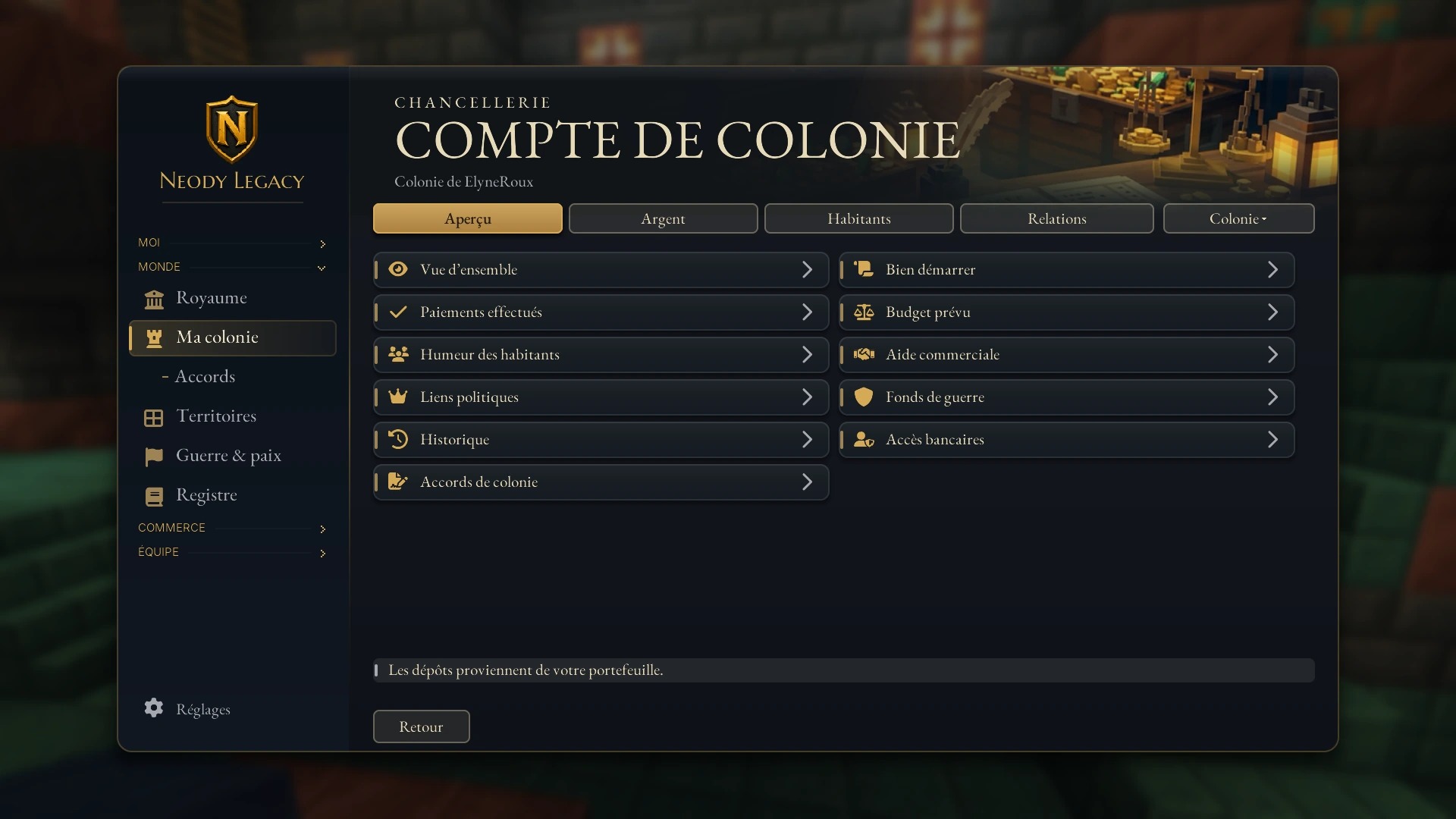
Monde › Ma colonie opens your colony account. The Aperçu (Overview), Argent (Money), Habitants (Residents) and Relations tabs give access to their pages in a second row. Read the Budget for forecasts and the Bilan (Statement) for payments actually made.
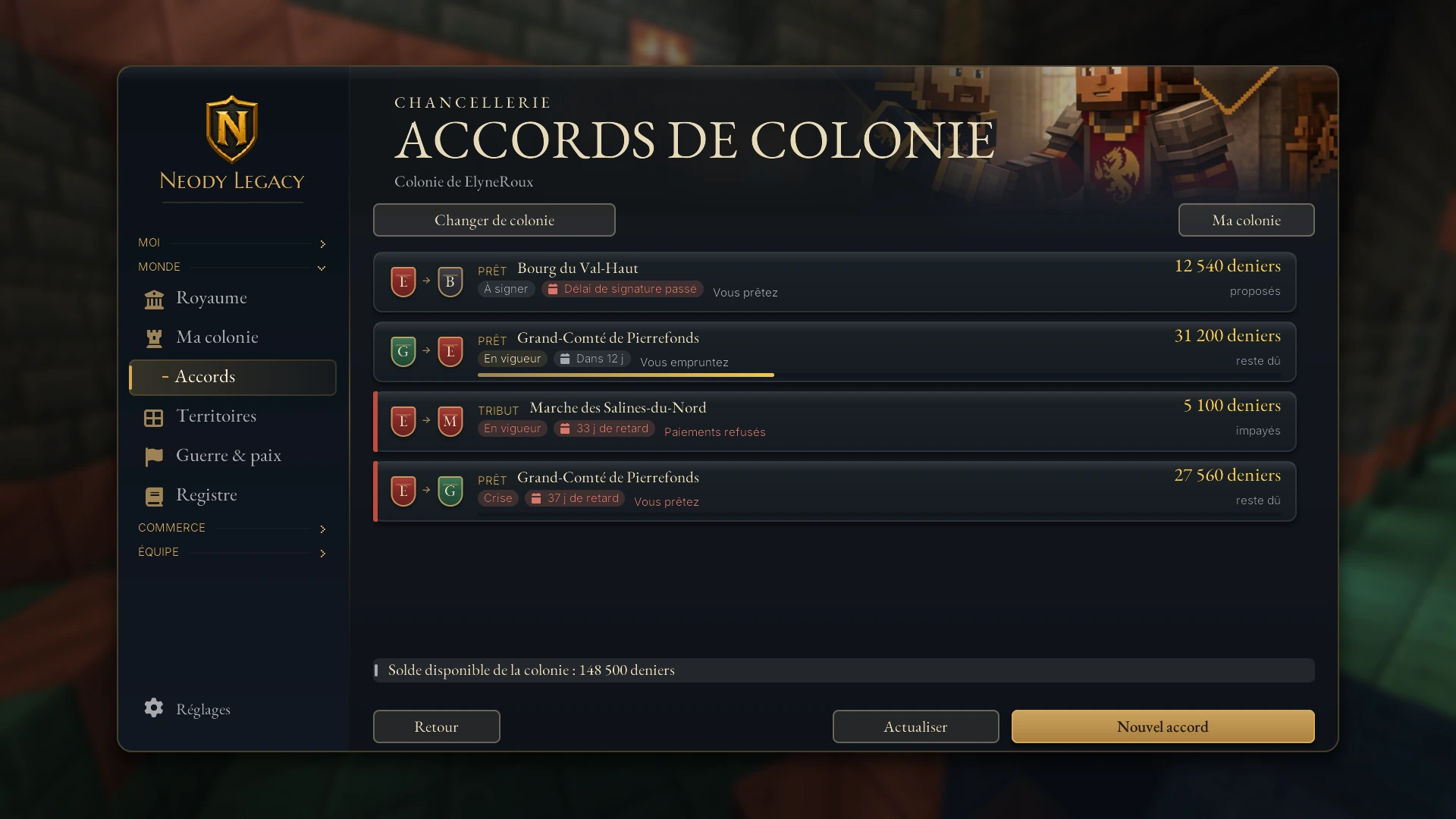
Loans and tribute between colonies are in Relations › Accords de colonie. They are separate from personal loans in Commerce. The treasury guide explains income, guards, access rights and prolonged absence.
9. Guerre & paix and Territoires
Monde › Guerre & paix opens diplomacy records. Choose the relevant colony to prepare an agreement or follow a conflict. The required roles and conditions are explained in the diplomacy guide.
Monde › Territoires opens the plot map. Check the owner, cost and permissions before confirming a purchase. Colonies and personal plots follow different rules: read Territories, protection and disputes before inviting someone or changing permissions.
10. The Ctrl + K palette
Ctrl + K opens the menu's quick search. Type a screen, player or action, then choose a suggestion. The arrow keys and Entrée (Enter) let you browse and open results; Échap (Escape) closes the palette.
11. Menu size, sounds and animations
The preferences button at the foot of the navigation adjusts menu size, sounds, animations and the compass. Start with Auto for the size; adjust it if the text is hard to read. If you have rebound a key, check the game controls for its current binding.
12. In-game notifications
Cards that appear in game announce a letter, sale, reward or change to a record. Open chat to click a card and go to its destination. If you missed it, find the alert in Courrier or the event in the relevant page's history.
13. Find an action at a glance
| I want to… | Path |
|---|---|
| See my King's Contracts | K › Monde › Royaume › Mes contrats |
| Deliver a Royal Order | K › Commerce › Marché › Commandes |
| Collect a purchase | K › Moi › Livraisons |
| Read an economic alert | K › Moi › Courrier |
| Manage my company | K › Commerce › Entreprise |
| Sign a loan between colonies | K › Monde › Ma colonie › Relations › Accords de colonie |
| Follow a political agreement | K › Monde › Guerre & paix |
Start with the Bureau, read the cards waiting for you and open Royaume to meet Aldwin. The menu keeps each action close to its relevant record.