Neody
Interface and recipes: the K menu, recipes and target information
K for the Neody menu, R for recipes, U for uses, target information and ore distributions: the complete guide to the Neody Legacy interface.
Contents
Thousands of items and recipes, yet everything is a few keystrokes away. The Neody Legacy interface gives you tools so you never need to leave the game to find a recipe, an ore level or a villager's profession, or to manage your balance, mail or colony. This guide teaches you to use the Neody menu (K), recipe browser, target tooltip and related tools like a veteran.
- The Kingdom menu
- Neody menu: press K ; search palette: Ctrl+K
- The encyclopaedia
- Recipe browser:
R= recipes,U= uses,A= bookmark - The magnifying glass
- Information on the targeted block, controlled with the numeric keypad
- Further information
- Ores, drops, chests, professions and enchantment descriptions
- Keybinding help
- Search bar in Options → Commandes (Controls)
The Neody menu: the K key
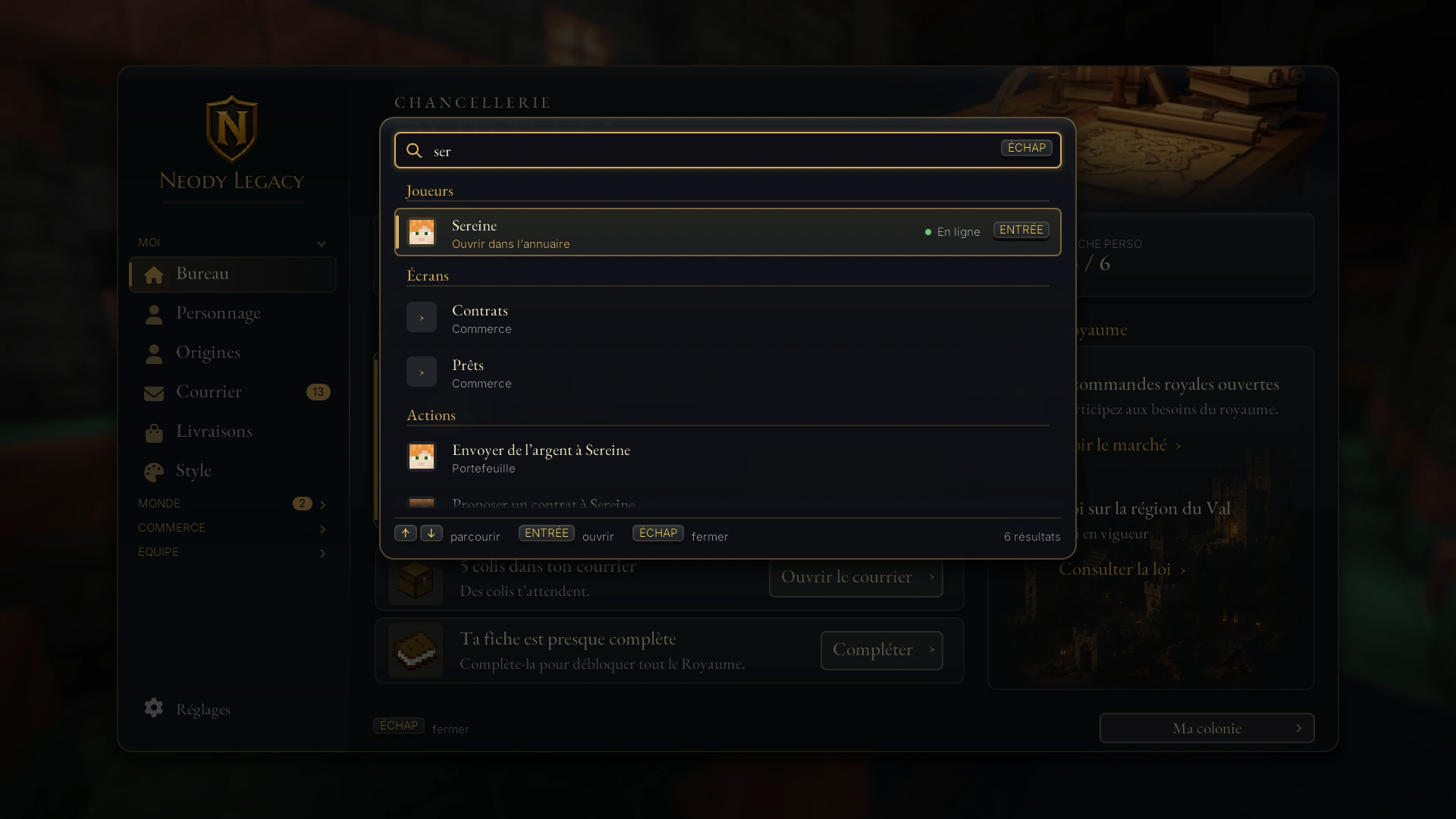
Learn this habit first: press K. The Neody menu opens at the Bureau de la Chancellerie (Chancellery Desk), your dashboard: balance, reputation, character-profile progress, things needing your attention (contracts to sign, parcels in the mail) and Kingdom life (open Royal Orders, mail, etc.). From here you access the economy, mail, directory, colony and diplomacy. Rebind the key in Options › Commandes, under “Neody Legacy” (“Ouvrir le menu Neody”, Open the Neody menu).
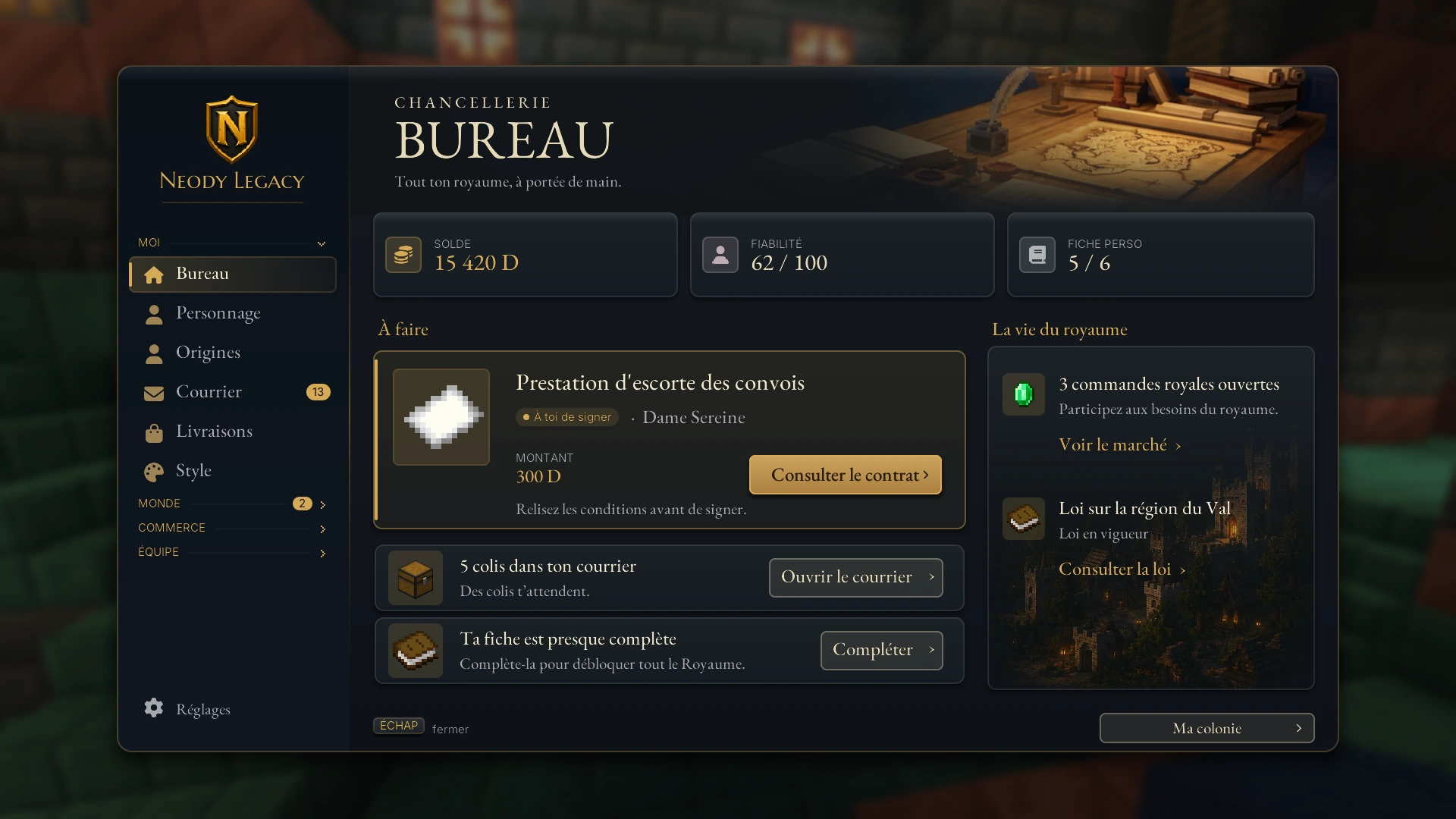
- The palette : Ctrl+K opens quick search. Type a few letters of a player, screen or action (“Envoyer de l'argent”, Send money; “Proposer un contrat”, Propose a contract…). Use arrows to browse, Enter to open and Escape to close.
- No recipes here : the Neody menu manages your Kingdom; the recipe browser manages recipes. They complement each other without getting in the way.
- K : Neody menu (Ctrl+K for its palette), but also shader toggle and rotation lock.
- O : your Dossier d'origine (Origin record), shader-pack selection and full-screen map options.
- H : class skill, but also the accessory screen and hiding accessory icons.
- V, G, N, B : origin skills 1 to 4. V also controls the quiver and a spell; G the accessory inventory and voice-chat group; N voice-chat muting and tree-felling settings; B the backpack, storage terminal, plane boost and map waypoints.
- F8 : “Suivre ma guerre” (Track my war, War screen).
The recipe encyclopaedia
The right panel lists every item, the left panel your bookmarks; search is at the bottom. Default keys:
| Key | Action |
|---|---|
R (or left-click) | Recipes for the hovered item (in the world, R also controls the spell wheel, aircraft descent, ship sails and cart hitching) |
U (or right-click) | Uses for the hovered item |
A | Add/remove a bookmark |
Ctrl+O | Show/hide recipe-browser panels |
Ctrl+F | Jump to the search bar |
Backspace | Return to the previous recipe |
PageUp/PageDown (+Shift) | Recipe pages (categories with Shift) |
Advanced search
@mod: filter by item collection:@farmersdelight,@minecolonies,@quark…#tag: by tag:#logs,#c:ores…$texte: by tooltip content;^couleur;&identifiant;%onglet créatif.- Combine them:
@farmersdelight #c:foodsfor all foods in the cooking collection. Beware of old tutorials: some reverse#and$; what you see in game is the reference.
Bookmarks: your production plan
Aover an item bookmarks it; on a recipe screen, the bookmark button pins the whole recipe.- On a recipe bookmark, Shift+click = craft once, Ctrl+click = craft the maximum (with a compatible crafting table open).
- Yourviewing history keeps recently viewed items; drag bookmarks to reorder them, and they persist between sessions.
[+] button can fill the crafting table from ingredients in your inventory. Grey means missing ingredients or an incompatible open screen, not a fault: use bookmarks and dragging instead. Item-spawning shortcuts are reserved for administrators in creative mode.The permanent magnifying glass
The overlay at the top identifies everything you target: block and item collection, creature HP, crop growth, furnace contents, chest inventories, villager profession, animal owner, mining progress, correct harvesting tool… Its controls use the numeric keypad :
| Key | Action |
|---|---|
Pavé 0 | Full configuration (position, scale, themes Classic, Dark, One Probe or Create) |
Pavé 1 | Show/hide the overlay (also used by creature creation) |
Pavé 2 | Toggle fluid display (also used by character creation) |
Pavé 3 / Pavé 4 | Recipes / uses of the targeted block : direct access to the recipe browser without opening an inventory |
Shift (held) | Expanded details, such as a chest's full inventory |
Pavé 1 and Pavé 2 are also used by character and creature creation; reassign them in Options › Commandes if needed.
- Target information is fully supported in multiplayer on Neody: inventory viewing and world information really work.
- The machinery tooltips also show engineer's-goggle information, burners, filters and moving-machine blocks; see the machinery guide.
- Neody information : the target tooltip adds two Kingdom-specific details: the schematic table's queue and a monster spawner's remaining lifespan.
- No numeric keypad? Rebind everything through the controls search below: this is the number 1 support case.
Ores, drops, chests and professions
Six extra tabs make the recipe browser an excellent planning tool:
- World Gen :
Rover an ore → its distribution curve by height, whether Silk Touch is required, Fortune's effect and valid dimensions. “Where should I mine?” now has a visual answer. - Mob Drops : drops, XP and conditions (killed by a player, Looting, on fire, moon phase…), a companion to the bestiary.
- Dungeon Chests : possible chest contents by structure (bastion, Ancient City, shipwreck…).
- Villager Trades, Enchantments, Plant Drops complete the picture.
The extra Professions tab: R over a composter, lectern or furnace tells you the associated villager job: useful for trade outside your colony. Enchantment descriptions also explain each enchantment clearly: hold Shift over an enchanted book to read its description.
Improved mouse controls and recipe selection
- Hold right-click + drag : place one item in every slot you cross.
- Hold left-click + drag (with an item held): collect all matching stacks as you pass.
- Hold Shift+click + drag : rapidly shift-click everything you cross.
- Scroll over a slot : move items one by one into the other inventory.
- Recipe selection : when two recipes use the same ingredients, a crafting-table button lists the possible results so you can choose. If crafting produces “the wrong variant”, check that button: it is not a bug.
On-screen information: hunger, hearts, armour and F3
- Food information : saturation overlays the hunger bar; holding food makes its expected restoration flash, and Shift over the tooltip shows numerical hunger and saturation. Compare dishes from the expanded cooking system at a glance.
- Coloured hearts : instead of stacked rows, one row changes colour every 20 HP. With health bonuses from certain origins, the display stays readable beyond 20 HP.
- Extended armour display : above 20 armour points (including chivalric plate and higher-tier netherite), coloured layers show the extra points rather than hiding them.
- Enhanced F3 debug display : a configurable, coloured debug screen showing server TPS, slime chunks, light and memory.
F3+Mopens its options;F3+Fadjusts render distance on the fly; “Disable Mod” restores vanilla F3 for purists. - Unobstructed swings : your sword strikes pass through grass to hit the creeper instead of mowing the meadow. No settings, just the end of an old frustration.
Safety overlays: F7 and F9
F7: spawn lighting : crosses on the ground mark blocks where monsters can spawn, yellow at night, red at any time. The numerical option shows the exact light level. Remember: hostiles spawn only at light 0; the old “light 7” rule is outdated. Combine this with the mega torch in the vanilla+ guide to secure colonies.F9: chunk boundaries : cycle through three modes to see chunk borders (and even region boundaries), aligning farms, factories and colony borders.- Container search : searching, sorting and quick item transfers also work in container screens outside the advanced-chest range (see storage).
- Double-click recipe search : slots not matching your search darken in the open inventory. Finding bone meal in a warehouse of 40 chests becomes easy.
Notifications, plaques and rarity frames
- Recipe notification controls reduce the first-launch flood of “recipes unlocked” messages: with this many recipes, a welcome service.
- Advancement plaques replace advancement pop-ups with golden plaques worthy of a guild hall, complete with dedicated sounds.
- Rarity frames frame items according to rarity, making legendaryspell scrolls recognisable before you even read them.
Mastering shortcuts: controls search
- Options → Commandes → a search bar filters keybindings as you type: search for the relevant action, such as spells or voice controls.
- The Conflits (Conflicts) button shows duplicate keys, while Non-liées (Unbound) shows unassigned actions. Assign spell shortcuts and unused recipe-browser controls here.
- “Touches disp.” (Available keys) lists keys still free; yes, there are some.
Common mistakes & troubleshooting
| Symptom | Cause | Solution |
|---|---|---|
R/U do nothing | Use them while hovering over an item inside an inventory | For a targeted block in the world: Pavé 3/Pavé 4 (target tooltip) |
| The recipe browser's [+] button is grey or fills nothing | Missing inventory ingredients or incompatible screen | Gather ingredients; otherwise use bookmarks and improved mouse controls |
| K does something other than open the Neody menu | Several actions share the key | Options › Commandes › “Conflits”, then rebind |
| Target-tooltip keys do not respond | Keyboard without numeric keypad | Controls search → find target-tooltip actions → rebind |
| I craft the wrong variant | Conflicting recipes | Use the crafting-table result-selection button to choose the output |
| An enchantment has no description | Its creator supplied no description | This is expected; most do have one |
| Too many first-login notifications | Many recipes unlocking at once | Recipe notifications are already regulated |
| My bookmarks disappeared on another PC | Bookmarks saved on your computer | Back up recipe-browser settings when changing machines |
| “F3 looks strange” | Configurable F3 debug display | F3+M to adjust everything, or disable the enhanced display |
| Red crosses everywhere in my base | F7 active, spawnable areas | Light to ≥1 (spawn threshold is light 0), or F7 to hide |
Interface FAQ
- How do I find an item's recipe? Hover over it and press
R. For uses:U. This is a fundamental Kingdom habit; every guide refers to it. - How do I show only one collection's items?
@nomdumodin recipe search, for example@minecolonies,@create,@supplementaries… - How do I see chest contents without opening it? Aim at it and hold
Shift(target tooltip). In someone else's colony, politeness still matters: looking is not rummaging. - Where should I mine a particular ore?
Rover the ore → World Gen tab: its height distribution speaks for itself. Mages' mithril follows its own rules. - Which villager uses which block? Professions tab,
Rover the workstation. - How do I move 27 stacks at once? Hold Shift+click and drag, or scroll for one-by-one transfers.
- Is my food worthwhile? Shift over the tooltip shows numerical hunger and saturation. Expanded cooking's banquets always win.
Veteran habits:
- K for your Kingdom, Ctrl+K for speed
R/Uover anything intriguing: the encyclopaedia is already there@modand#tagfor every serious search- Recipe bookmarks for any project needing more than three crafts
F7before declaring a district “safe”- Controls search at the first key conflict, not the tenth
Pavé 3on unfamiliar machines in the world
The Kingdom's knowledge fits into three keys: K for your Kingdom, R for “how”, U for “why”. The rest is practice.