Neody
Graphics and atmosphere: shaders, horizons and soundtrack
Complementary shaders, key conflicts, a performance checklist, a medieval soundtrack, acoustics and fireflies: adapt Neody Legacy's atmosphere to your machine.
Contents
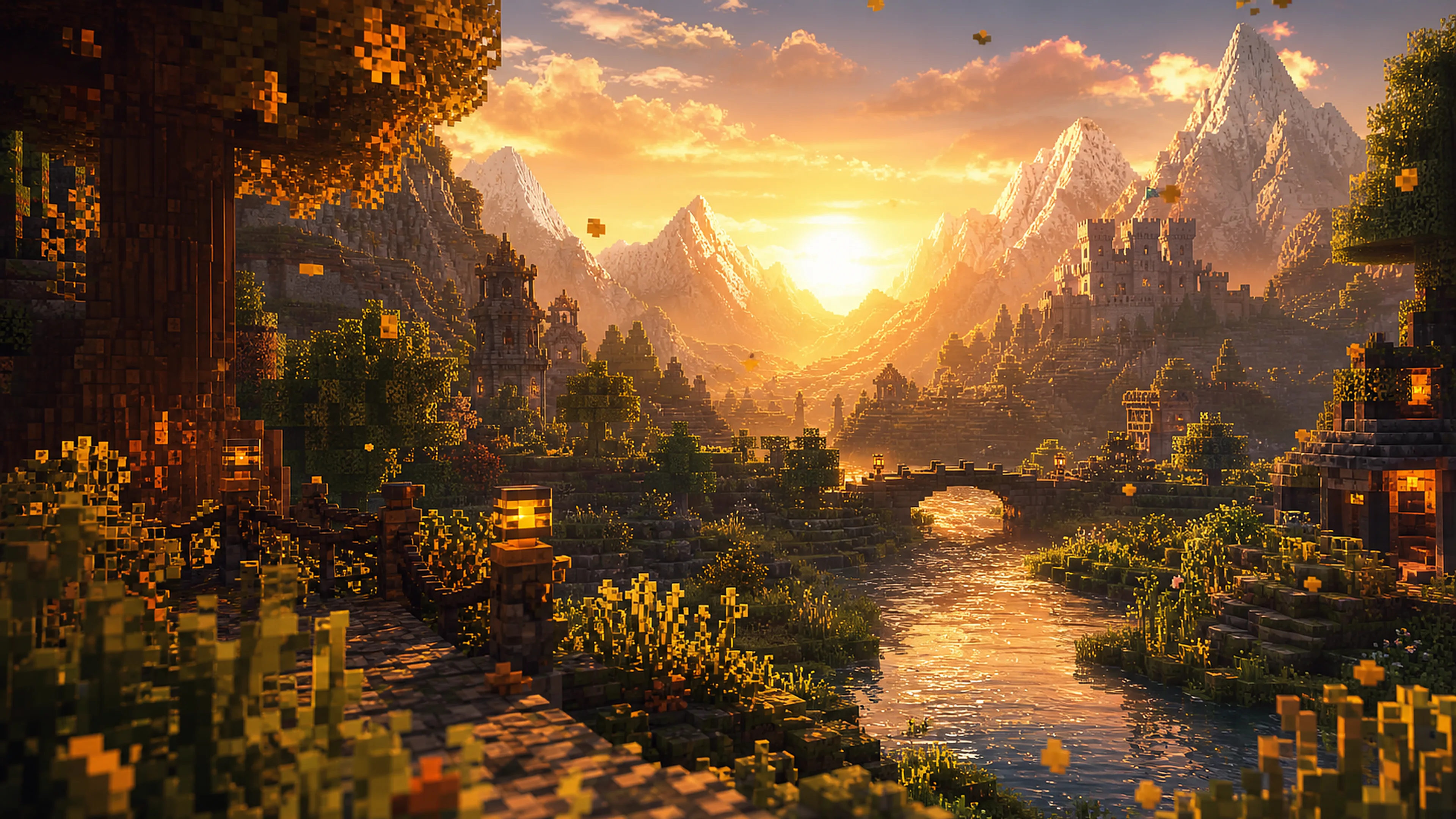
There is the Kingdom you build, and the one you see. On Neody Legacy, the launcher provides a complete graphics setup: Complementary shaders ready on first launch, leaves drifting from branches, fireflies at night, a medieval soundtrack and music-loving cats. This guide explains what you see and hear, how to suit it to your machine, and how to switch it off if your graphics card needs a break.
- Shaders
- Complementary Unbound with extra settings selected initially; eight packs included
- Shader controls
- Toggle, choose a pack, reload: configure in Options › Commandes (see the key-conflict box)
- Memory
- Managed by the launcher: no adjustment needed to begin
Neody's graphics setup
Two layers, ready to use:
- Optimised rendering : draws the terrain and replaces Options → Video Settings with a more detailed tabbed interface.
- Shader support : loads shader packs on top of the optimised renderer.
The initially selected shader pack is Complementary Unbound with extra settings : everything is already set up; you have nothing to install.
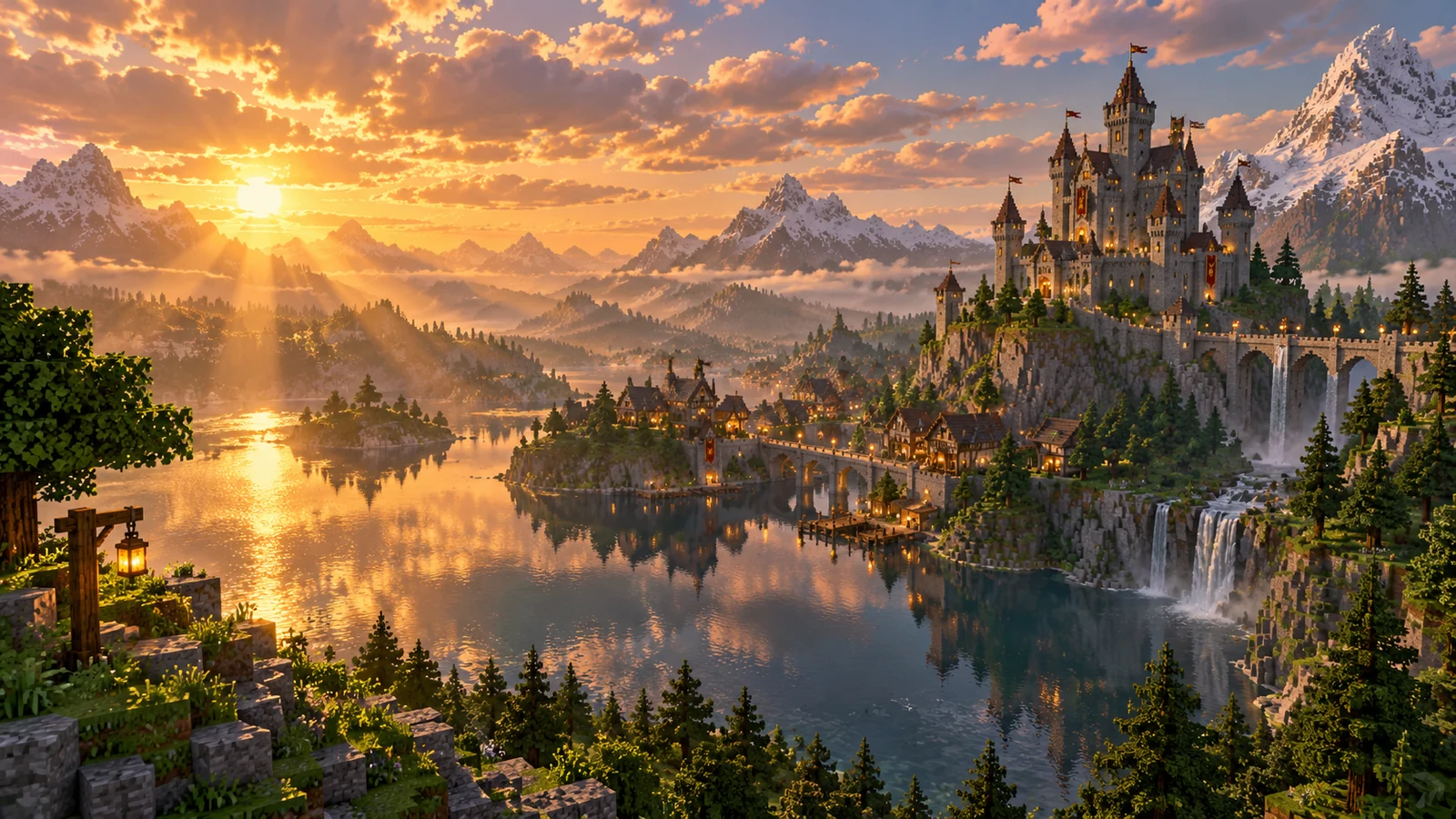
Shaders: choose, adjust, switch off
The three shader controls to know:
| Action | What to know |
|---|---|
| Enable/disable shaders | Instant toggle, perfect for comparison. The default key is K |
| Choose shader pack | Opens the pack list. Default: O |
| Reload shaders | After changing settings. Default: R, also used for recipes, the spell wheel, aircraft descent, ship sails and cart hitching: reassign it in Options › Commandes if needed |
- K : Neody menu (Ctrl+K for its palette), but also shader toggle and rotation lock.
- O : your Dossier d'origine (Origin record), shader-pack selection and full-screen map options.
- H : class skill, but also the accessory screen and hiding accessory icons.
- V, G, N, B : origin skills 1 to 4. V also controls the quiver and a spell; G the accessory inventory and voice-chat group; N voice-chat muting and tree-felling settings; B the backpack, storage terminal, plane boost and map waypoints.
- F8 : “Suivre ma guerre” (Track my war, War screen).
- Distant landscape rendering : simplified terrain displayed far beyond the vanilla render distance.
- Eight packs included in the shaderpacks folder: Complementary Unbound and Reimagined (each with standard and extended-settings variants), BSL, Sildur's Vibrant Extreme, Solas and VanillaPlus. Find a match for your GPU without downloading anything.
- Adding a pack : drag the
.zip(without extracting it) straight into the selection window, or use “Open Shader Pack Folder…” then Refresh. Download only from Modrinth; mirror sites can harbour malware. - Adjusting the active shader pack : use “Shader Pack Settings…” and explore the pack's options; do not import third-party settings files without a reason.
- Personal graphics : these settings affect only your view, with no effect on the server or other players.
The extended-settings variant in your shader list
- It is not a separate shader : the extra settings are added to your Complementary copy on first launch , creating an extended-settings variant with a longer name in the list.
- The changes are applied on your computer, to your local copy: no pre-modified copy is downloaded.
- They provide a much larger options menu in the shader-pack settings. Both Unbound and Reimagined styles have extended-settings variants included.
Distant landscapes: seeing 256 chunks away
- The principle : beyond vanilla render distance, simplified distant terrain is saved for each world. In multiplayer, these landscapes build up as you explore : every journey permanently enriches your horizon.
- Neody's preset is ambitious : a radius of 256 chunks, extreme horizontal quality, full transparency and ambient shading. On a modest machine, this is the first place to recover frames per second.
- Quick settings : a dedicated button beside the FOV slider opens distant-landscape settings. Lower “Quality Preset” if the GPU struggles; lower “CPU Load” for stuttering, or raise it to generate landscapes faster while exploring.
- Shadows and distant terrain : shader shadows reach up to 32 chunks in the supplied settings; beyond that, distant landscapes use their own lighting. A balancing choice, not a bug.
- Spyglass bonus : the zoom-refinement option improves distant-terrain quality when viewed through a spyglass.
Running slowly? The performance checklist, in order
- Measure first : the enhanced F3 display (
F3) shows FPS and server TPS in coloured sections. Determine whether the problem is your machine or the server (F3+Mfor display options,F3+Fto cycle render distance on the fly). - Shaders off (use the shader toggle). If FPS rises sharply, the GPU was the bottleneck; choose a lighter pack (VanillaPlus, BSL) in shader-pack selection.
- Leave memory to the launcher : it sets allocation. “Full” memory in F3 is normal: memory fills before being cleared.
- No promised figures : gains depend on your machine. The method above works everywhere.
The Kingdom's soundtrack: five layers in harmony
- Medieval soundtrack replaces vanilla tracks with medieval arrangements. This is the musical repertoire: no settings; it changes what you hear, not when you hear it.
- Contextual music conducts the soundtrack: dedicated selections for night, caves, water, Nether and End, shorter pauses than vanilla, music that stops when you change soundscapes, and absolute priority for the jukebox.
- Ambient sound adds the background: daytime birds, night-time crickets, mountain wind, cave air. Each category has its own in-game volume slider.
- Realistic acoustics give sound a physical presence: a shout echoes in a cave, a voice is muffled behind a wall, water changes the echo. No required adjustments; especially noticeable underground and in your colony's great halls (see also voice chat, which uses these acoustics too).
- Music-loving cats : a cat sitting beside a playing jukebox bobs its head to the beat, while background music pauses for the disc.
Details that create atmosphere
- Leaves and particles : leaves drifting from branches (two overlapping effects; density is an atmospheric choice), 3D water splashes, waterfall spray, night-time fireflies in temperate biomes, cave dust and glowing lava drips.
- Third-person animations : you can actually see eating, rowing, ladder climbing, map holding, dog petting and shivering. Each player's display follows their own settings.
- Visible seasons : seasons transform the wild world. The calendar follows real-world time, roughly one week per season, so the world changes its appearance every week.
- Snow down to the roots : winter snow falls beneath foliage too, avoiding forests that are white above and green below.
- A setting worthy of your colony : fireflies above fields, leaves on colony roofs; your city looks beautiful from the first launch.
Common mistakes & troubleshooting
| Symptom | Cause | Solution |
|---|---|---|
| “My shaders disappeared!” | Shader toggle pressed accidentally | Press it again: it is an on/off toggle |
| “K opens the Neody menu instead of switching shaders off” | Two controls share a key | Options › Commandes: rebind the shader toggle or Neody menu (see the box above) |
| “… is not a valid Shader Pack” | Archive extracted or corrupted | Download again from Modrinth; leave the .zip unchanged |
| Black screen while loading a pack | Shader incompatible with your GPU | An error appears and normal rendering resumes; choose a lighter pack |
| “My memory is always full” (F3) | Normal memory behaviour | No action needed; this is healthy |
| The extended-settings variant disappeared after an update | Old extended-settings folders automatically renamed | Restart the game to regenerate the variant |
| Music stops abruptly on leaving a cave | Contextual music: the soundscape changed | Intended behaviour |
| The cat does not bob its head | Cat standing, or no disc playing | Make the cat sit directly beside a jukebox playing a disc |
The aesthete's FAQ
- Are shaders required? No: switch them off with the shader toggle and the game uses optimised rendering alone, for maximum performance.
- Can I use my favourite shader pack? Yes: drag its .zip into the selection window. This changes only the graphics on your computer.
- How many FPS will I get? Honestly, it depends on your machine. Measure with the enhanced F3 display, follow the checklist and distrust promised figures.
- Can I allocate more memory? The launcher manages allocation with calibrated settings; do not change it without a reason.
- Why two leaf effects? A deliberate atmospheric choice. If they are too dense for your taste, disable one in its graphics settings.
- Do other players see my animations and shaders? No: this guide covers your personal visual experience. Everyone shares the Kingdom, but not its lighting.
Quick settings for your machine:
- Powerful machine : leave everything as supplied; the preset suits you
- Mid-range machine : keep Complementary, or switch to BSL
- Modest machine : shaders off or VanillaPlus; the game still looks beautiful close up
- A special screenshot : turn everything up for an F2, then restore sensible settings and find an in-game frame
The Kingdom is already beautiful; your graphics card only decides how far you see it.